How to Use Social Sharing
Tryon AI makes it easy to share your health data, recovery insights, and daily scores with friends, coaches, or your community. Sharing your stats can help celebrate progress, stay accountable, or highlight milestones in your health journey.
You can generate a shareable card that displays your Tryon AI metrics and customize it before posting.
Option 1: Share Icon
Open Tryon AI.
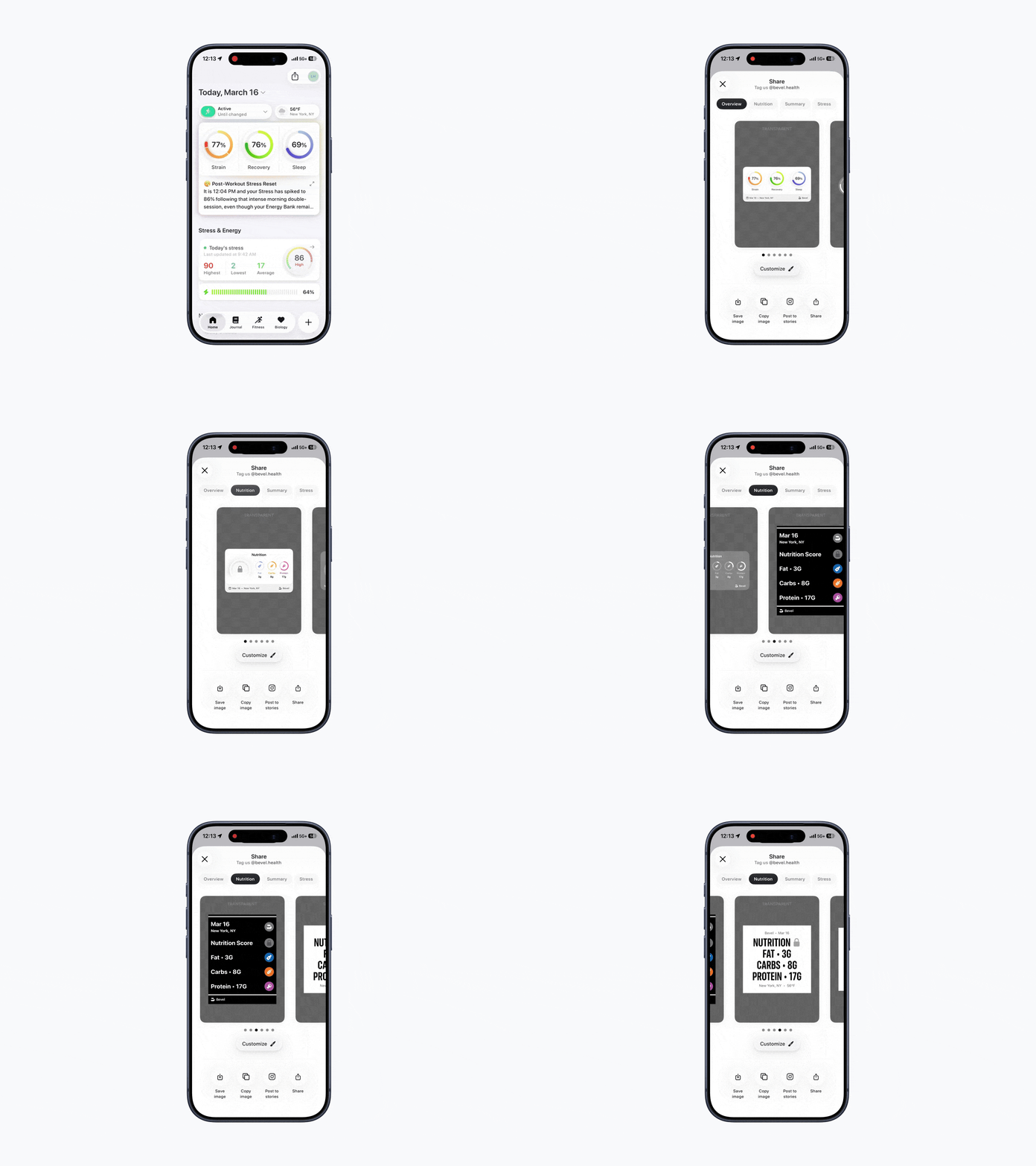
On the home tab, tap the Share icon in the top-right corner.
Preview share cards across Overview, Nutrition, Summary, Stress, and Biology
Tap Customize under the card you want to share.
Choose Light or Dark mode and customize what appears on the card (metrics, icon, location, etc.).
Tap the check mark in the top-right corner to confirm your changes.
Select how youâd like to share the card: Save Image, Copy Image, Post to Stories, Share to another app.
Tap Share to complete.
Option 2: Screenshot Sharing
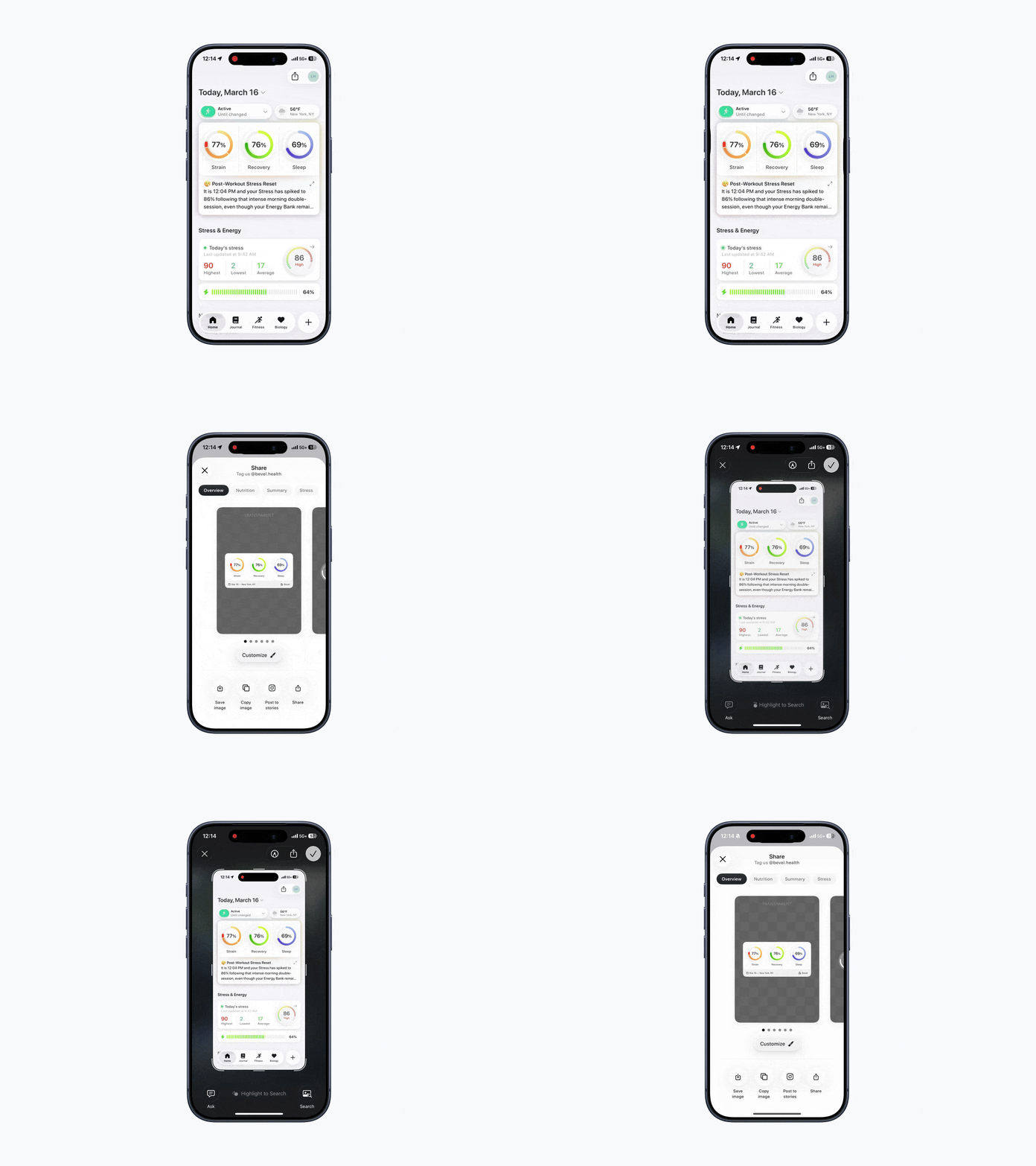
You can also generate a share card from a screenshot.
Open Tryon AI.
Take a screenshot of Home, Recovery, Strain, Sleep, Stress, Nutrition, or Biology
Preview share cards across Overview, Nutrition, Summary, Stress, and Biology.
Tap Customize under the card you want to use.
Choose Light or Dark mode and customize what appears on the card (metrics, icon, location, etc.).
Tap the check mark in the top-right corner to confirm.
Select how youâd like to share the card: Save Image, Copy Image, Post to Stories, Share to another app.
Tap Share.
Biological Age Social Sharing
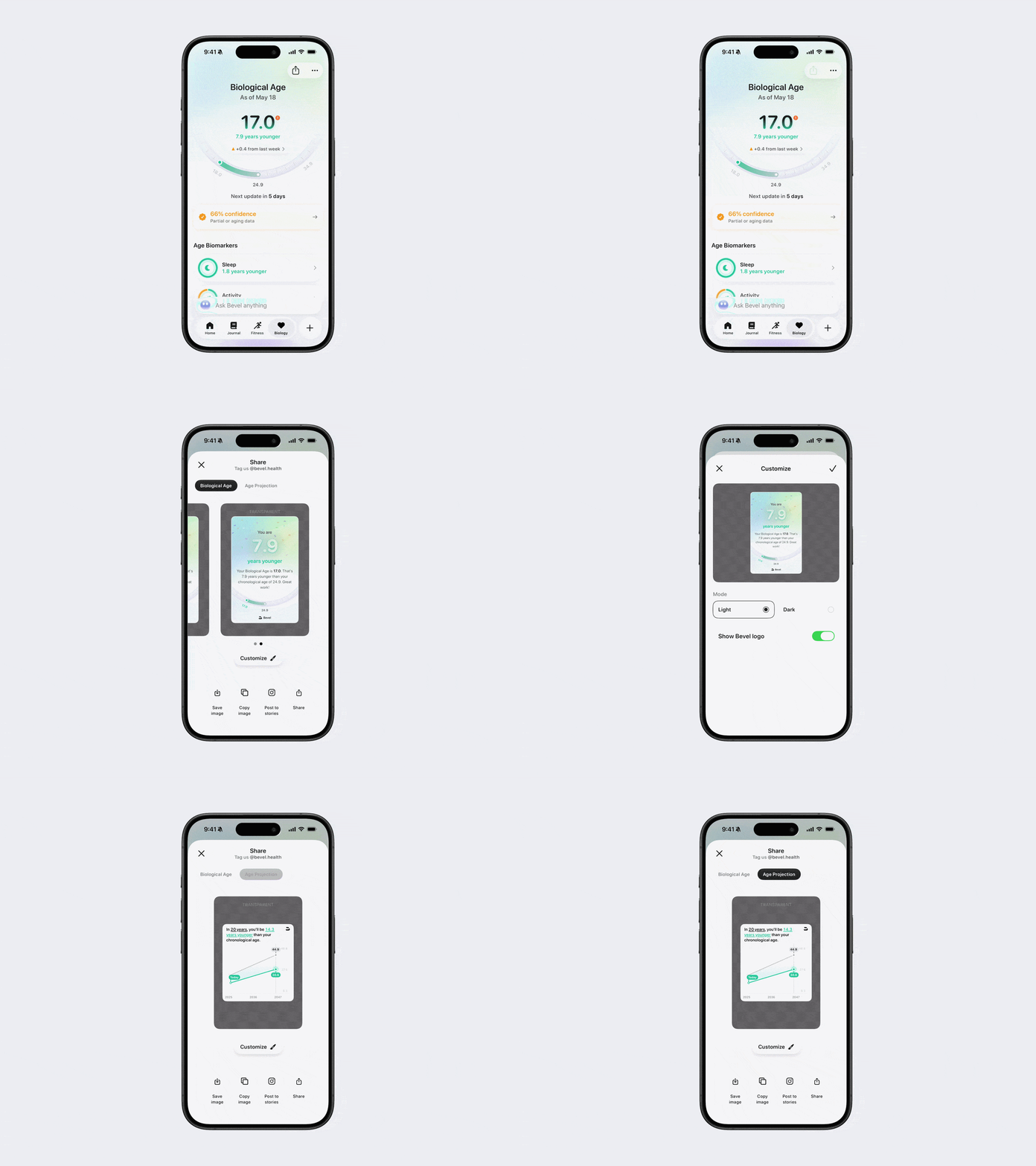
You can also share Biological Age insights using the same social sharing flow on the Biology page. To do this, navigate to the Biology page instead of the Home tab and tap the Share icon in the top-right corner, or take a screenshot from the Biology page to generate a share card. Biological Age share cards may include metrics such as Biological Age and Age Projection, along with other customization options available throughout Tryon AI.
Achievement Banners
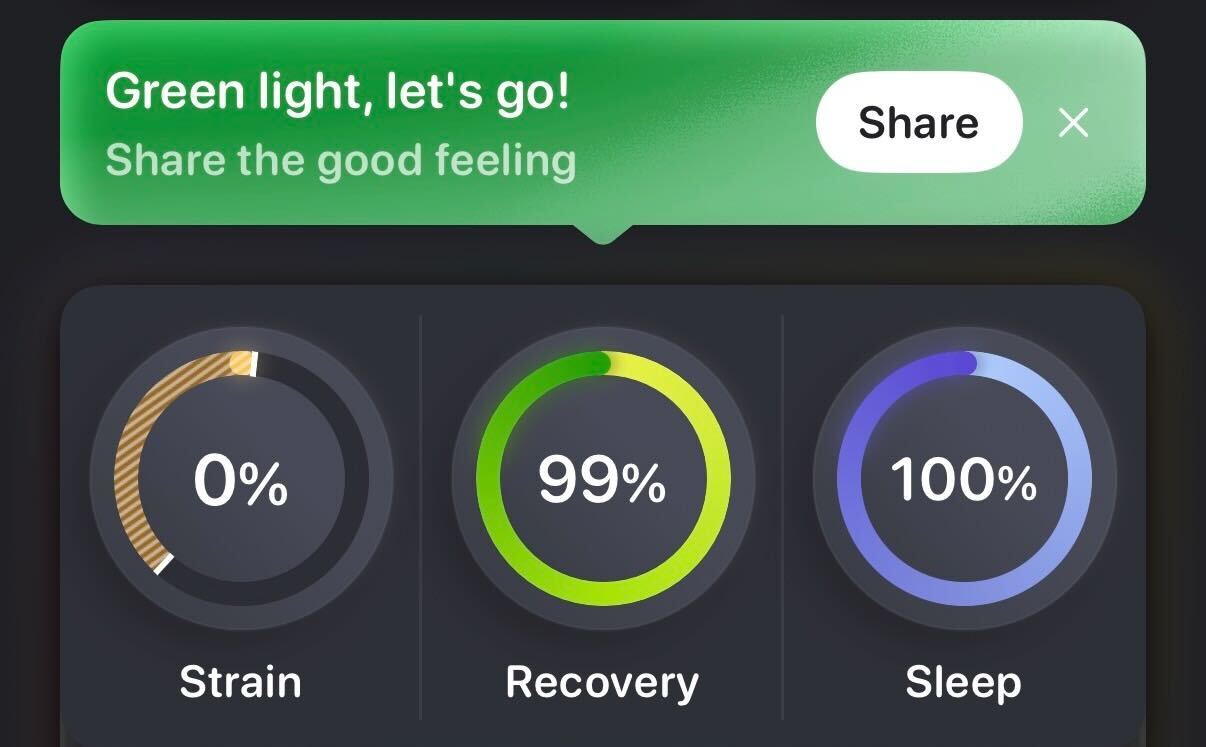
When you reach certain milestones, such as a high Sleep Score, Tryon AI may display an Achievement Banner. From this banner, you can quickly share your achievement with others.
Tap Share next to the banner to generate a share card.
What Gets Shared
Your share card may include key metrics such as:
Strain Score
Recovery Score
Sleep Score
Nutrition Score
Nutrition macronutrients
Stress Score
Date
Location
Tryon AI Intelligence insights
You can always review and edit the preview before posting to ensure youâre comfortable with what is being shared.
Where You Can Share
Tryon AI share cards can be shared through:
Messages or group chats
Instagram Stories or posts
X (Twitter)
Other social media apps
Email or private messages
Sharing your data is optional and fully controlled by you. You decide when and where your Tryon AI insights are shared.
Customize Social Sharing
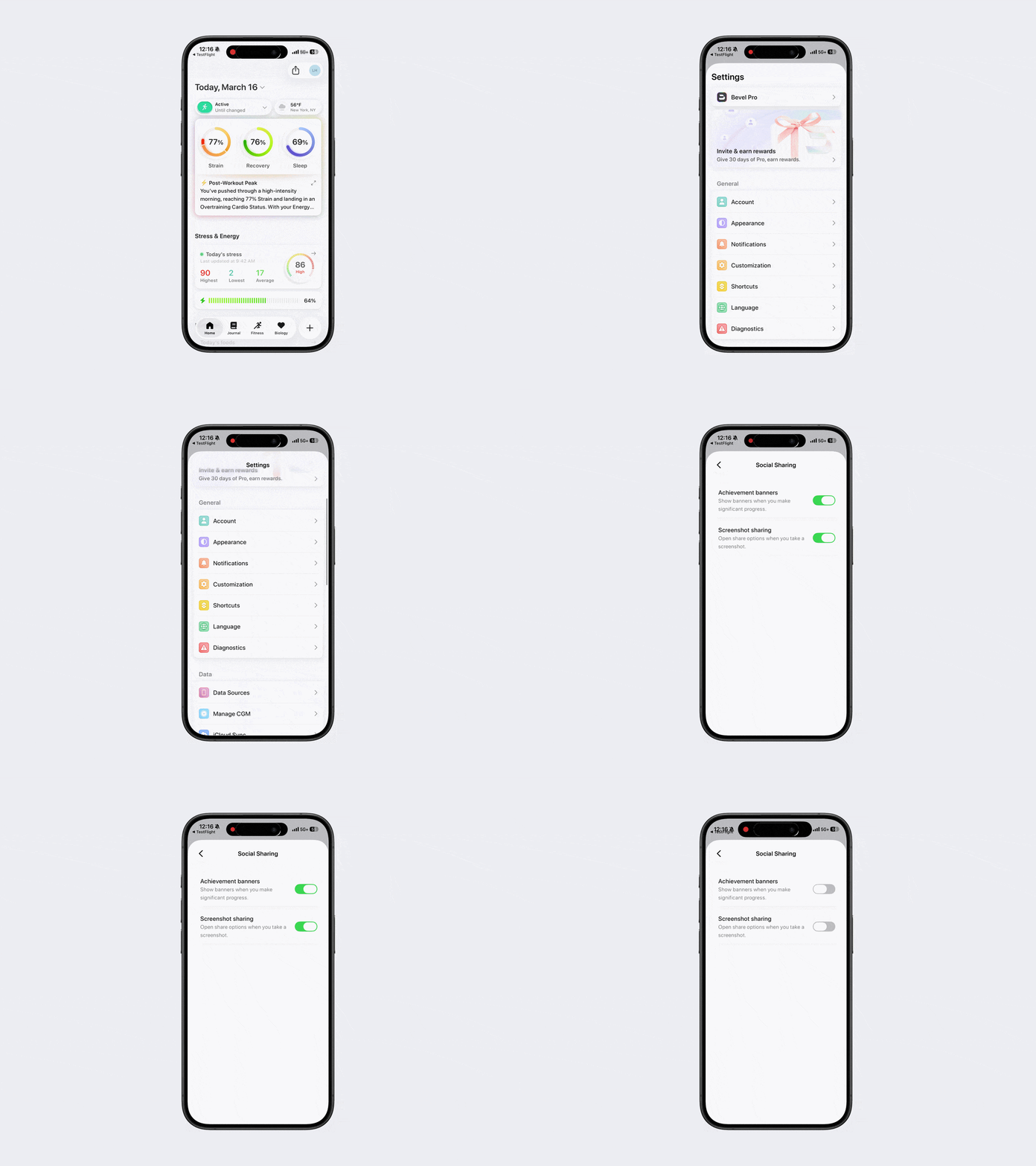
If you prefer not to use certain sharing features, you can manage them in settings.
Open Tryon AI.
Navigate to the Home tab.
Tap your initials or profile picture in the top-right corner.
Tap Customization.
Tap Social Sharing.
Toggle Achievement Banners or Screenshot Sharing on or off.