Do You Need to Sleep with a Device to Use Tryon AI?
You can use Tryon AI without wearing a device during sleep, but wearing a compatible wearable overnight is the best way to get accurate scores and insights.
Without overnight data like resting heart rate (RHR) and heart rate variability (HRV), Tryon AI canât generate key metrics such as Sleep Score, Recovery Score, Target Strain, or accurate Cardio Load. These scores rely on consistent physiological data collected during sleep.
You can continue using Tryon AIâs other features, including Strength Builder, Biology, Journal, and manual logging, though insights may be limited. Manual entries or Apple Watchâs âAll Dayâ setting can help, though scores may change throughout the day as Apple Health updates data (for example, resting heart rate).
How Insights Work Without a Device
You can still get valuable Insights in Tryon AI even without wearing a device during Sleep.
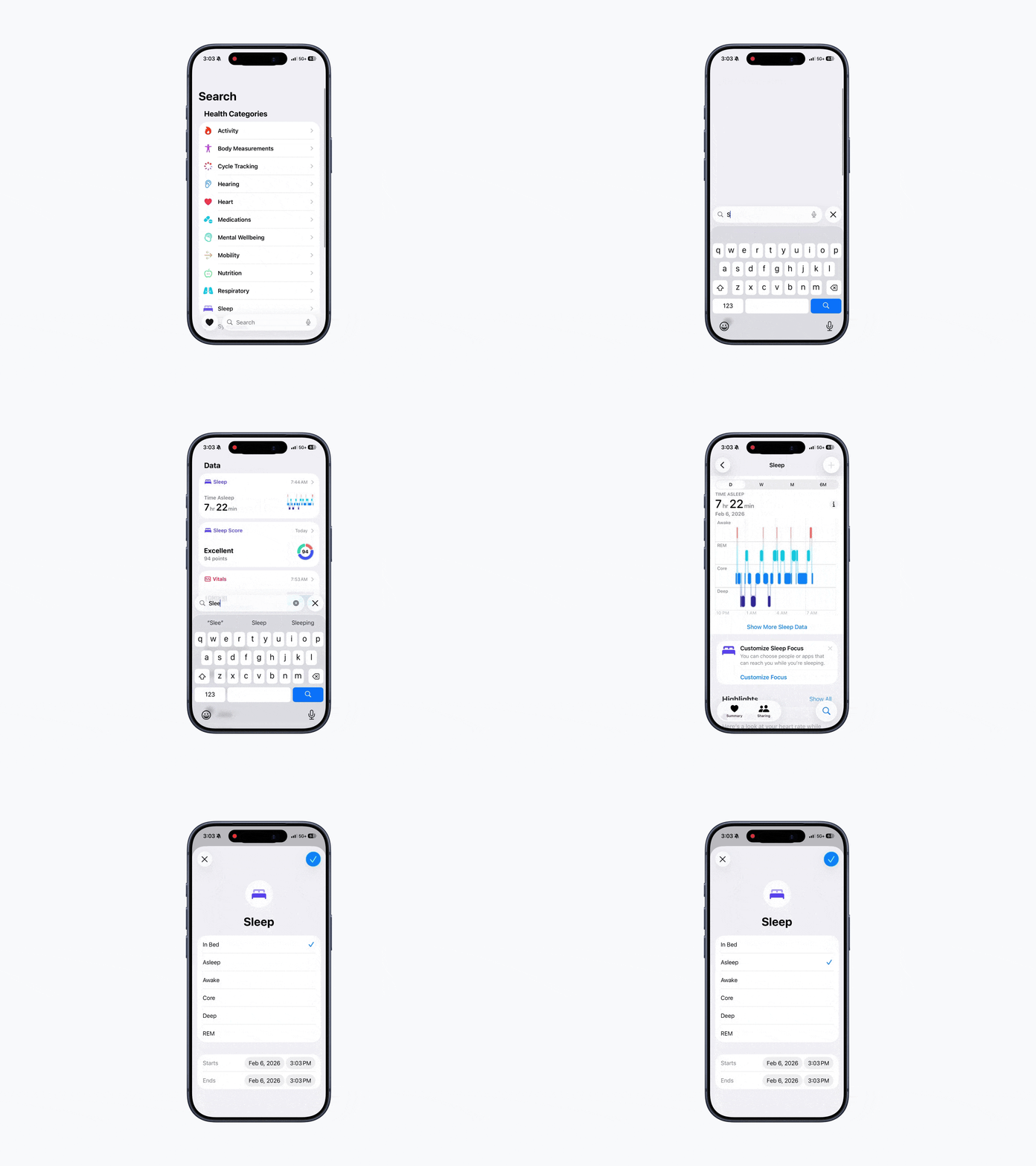
Log Sleep Manually:
Go to Apple Health
Search for Sleep.
Tap the + (plus) button in the top-right corner.
Manually add your Sleep data.
Log Naps
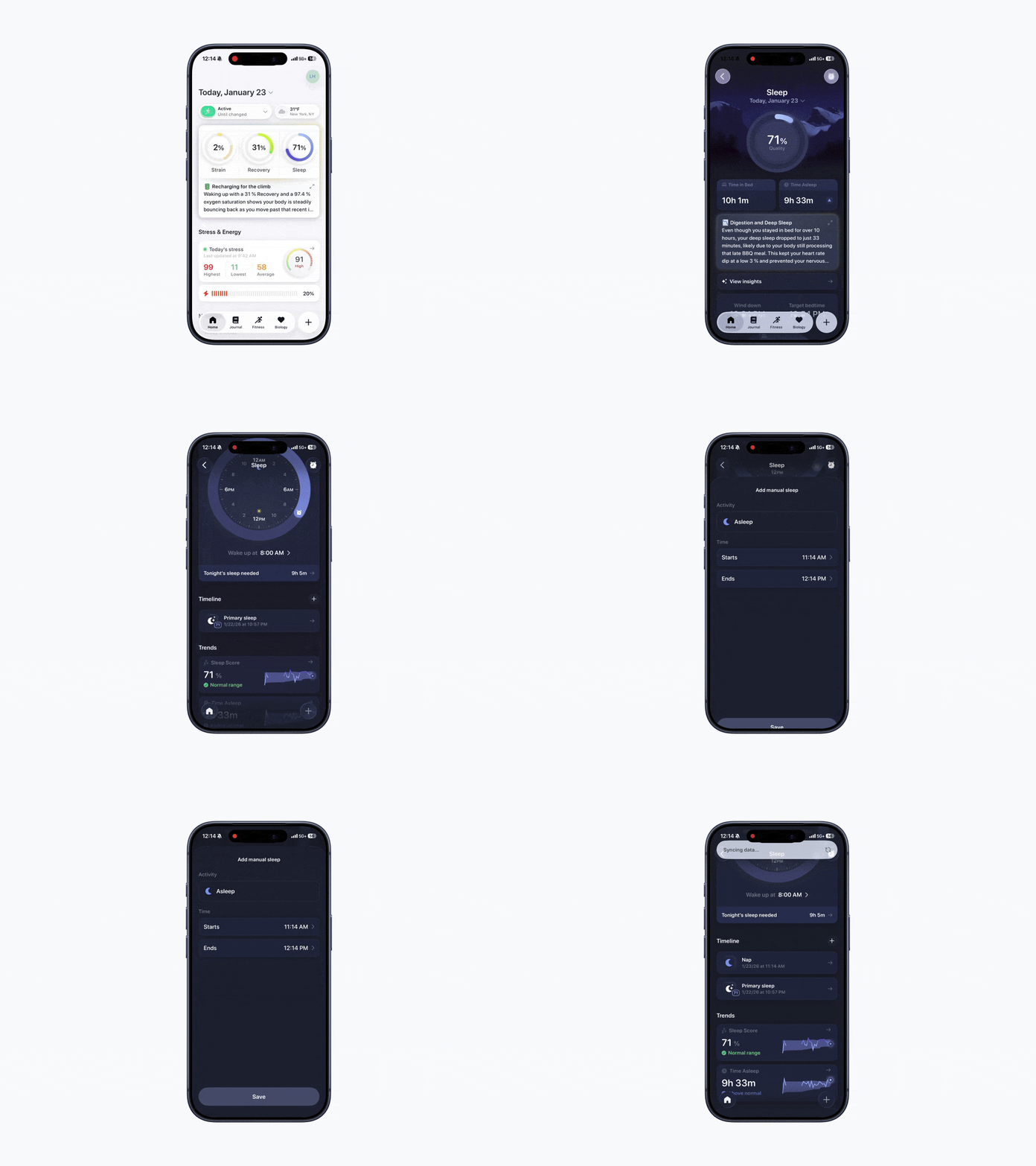
Open Tryon AI.
Tap Sleep Ring.
Scroll down to Timeline.
Tap the + (plus) button.
Enter your start and end times
Tap Save.
Note: Tryon AI will automatically merge any Sleep entries that fall within 15 minutes of your Primary Sleep. Make sure to double-check the times to ensure your Sleep data is accurate.
Delete Sleep Data in Apple Health:
Open the Health app.
Tap the search icon in the bottom-right corner, then search for and select Sleep.
Tap Sleep.
Scroll down and tap Show All Data.
Tap Edit in the top right.
Select the Sleep entry you want to delete.
Tap Delete.
Tap the checkmark in the top right corner to confirm.
Log Data in Apple Health
Certain metrics can be manually logged in Apple Health and will automatically sync to Tryon AI. This includes metrics such as Resting Heart Rate (RHR), Heart Rate Variability (HRV), Respiratory Rate (RR), and Oxygen Saturation (SpOâ).
Steps to Log Data:
Open the Apple Health app.
Use the Search bar to find the metric you want to log (e.g., RHR, HRV, RR, SpOâ).
Tap the + (plus) button in the top-right corner.
Enter your value and date/time.
Tap Add to save your entry.
Once logged, Tryon AI will automatically pull this data from Apple Health during its next sync.
Insights From Logged Data:
Tryon AI uses your manually logged Sleep along with other tracked metrics, like Activity and Nutrition, to generate Insights.
Limitations Without Device Data:
Some Trends, Sleep Stage details, and personalized recommendations may be less detailed when a wearable device isnât used.
How Insights Improve With a Device
Wearable devices can automatically track:
Sleep duration and quality
REM and Deep Sleep Stages
Key health indicators, including Respiratory Rate, Resting Heart Rate, Heart Rate Variability, Oxygen Saturation (SpOâ), Temperature, and Sleep metrics.
This automatic tracking gives more precise Trends, Recovery Scores, and personalized recommendations.