
How to Change Units of Measurement
Tryon AI lets you choose the units of measurement that best suit your preferences. You can change units for weight, distance, temperature, and other tracked metrics to make your data easier to read and use.
This article explains how to update your units of measurement in Tryon AI.
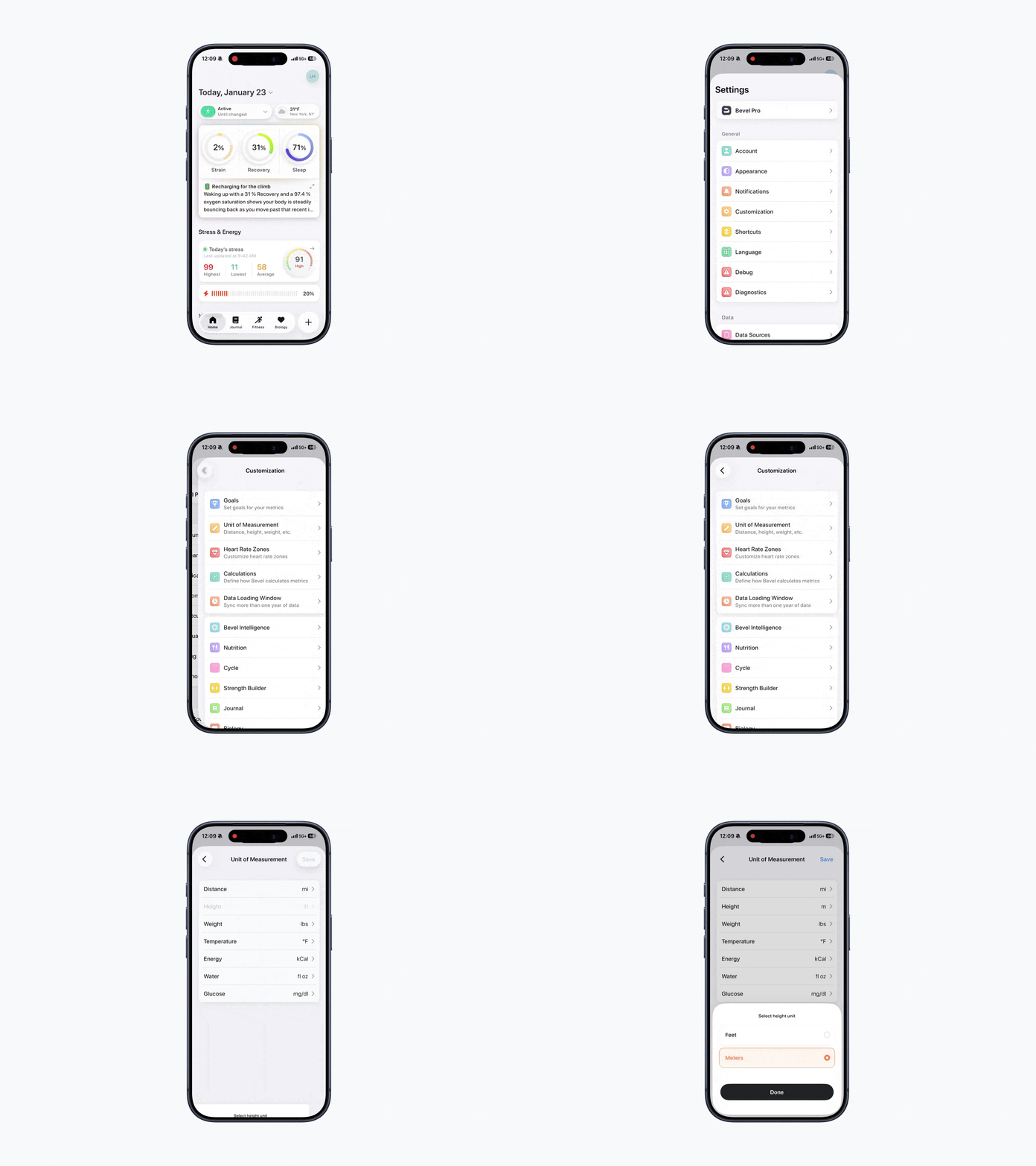
Accessing Unit Settings
To change units:
Open Tryon AI.
Tap your initials or profile picture in the top-right corner.
Tap Customization.
Tap Unit of Measurement
From here, you can update the units used throughout Tryon AI.
Changing Units
Tryon AI allows you to switch between common units:
Distance: kilometers (km) or miles (mi)
Height: feet (ft) or meters (m)
Weight: kilograms (kg) or pounds (lb)
Temperature: Celsius (°C) or Fahrenheit (°F)
Energy: calories (kcal) or kilojoules (kJ)
Water: fluid ounces (fl oz) or milliliters (mL)
Glucose: milligrams per deciliter (mg/dL) or millimoles per liter (mmol/L)
To update a unit:
Tap the metric you want to change.
Select your preferred unit from the available options.
Tap Done.
Tap Save in the top-right corner to apply your changes.