
How to Change Notification Settings
Tryon AI lets you set reminders to help you stay consistent with your health and wellness routines. Reminders make it easier to track habits, log metrics, and maintain progress toward your goals.
This article explains the types of reminders you can create in Tryon AI and how to manage them.
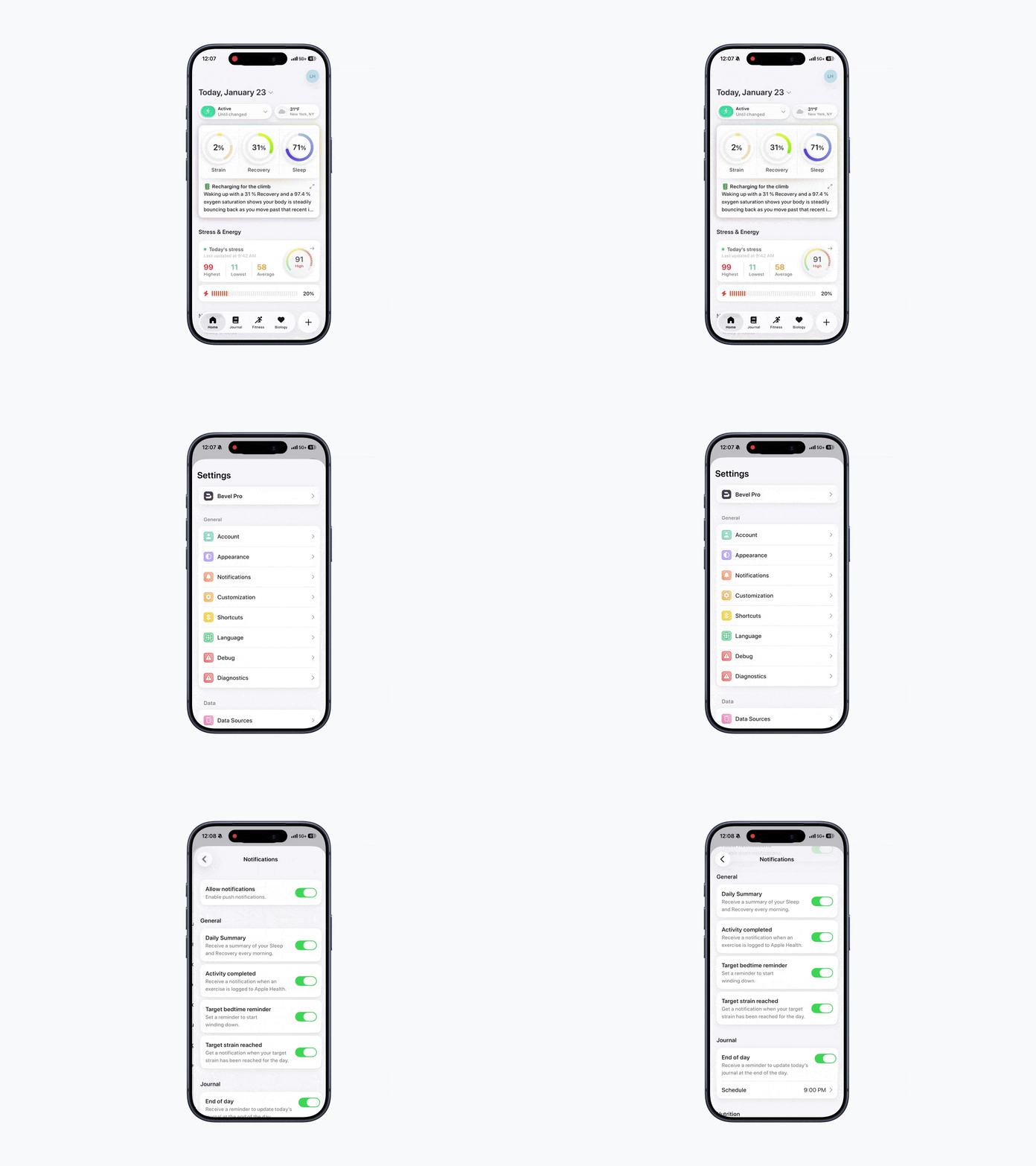
Accessing Notifications
To view or manage reminders:
Open Tryon AI.
Tap your initials or profile picture in the top-right corner.
Tap Notifications.
From here, you can toggle specific notifications on or off.
Types of Notifications
Tryon AI offers several types of reminders to support different aspects of your routine:
1. General Reminders
Daily Summary
Receive a summary of your Sleep and Recovery every morning.
Activity Completed
Receive a notification when an exercise is logged to Apple Health.
Target Bedtime Reminder
Set a reminder to start winding down.
Target Strain Reached
Get a notification when your target strain has been reached for the day.
2. Journal Reminders
End-of-day reminders to update your journal.
Receive a reminder to update todayâs journal at the end of the day.
You can schedule the specific time for these notifications.
3. Nutrition Reminders
Food logged reminders
Get a notification when a food item has finished processing.
Glucose processed reminders
Get a notification when your Glucose Impact Score is ready to view
3. Tryon AI Intelligence
Responses ready
Get notified when Tryon AI Intelligence completes a task or prepares a response.
Check-ins
Receive an alert when a scheduled check-in occurs.
Documents ready
Get notified when your uploaded documents have been analyzed