
How To Connect Devices
Tryon AI lets you connect supported devices to automatically sync your data. Connecting devices ensures your metrics, Trends, and Insights are accurate and up to date. If a device uploads data to Apple Health, Tryon AI can also pull those Apple Health metrics automatically.
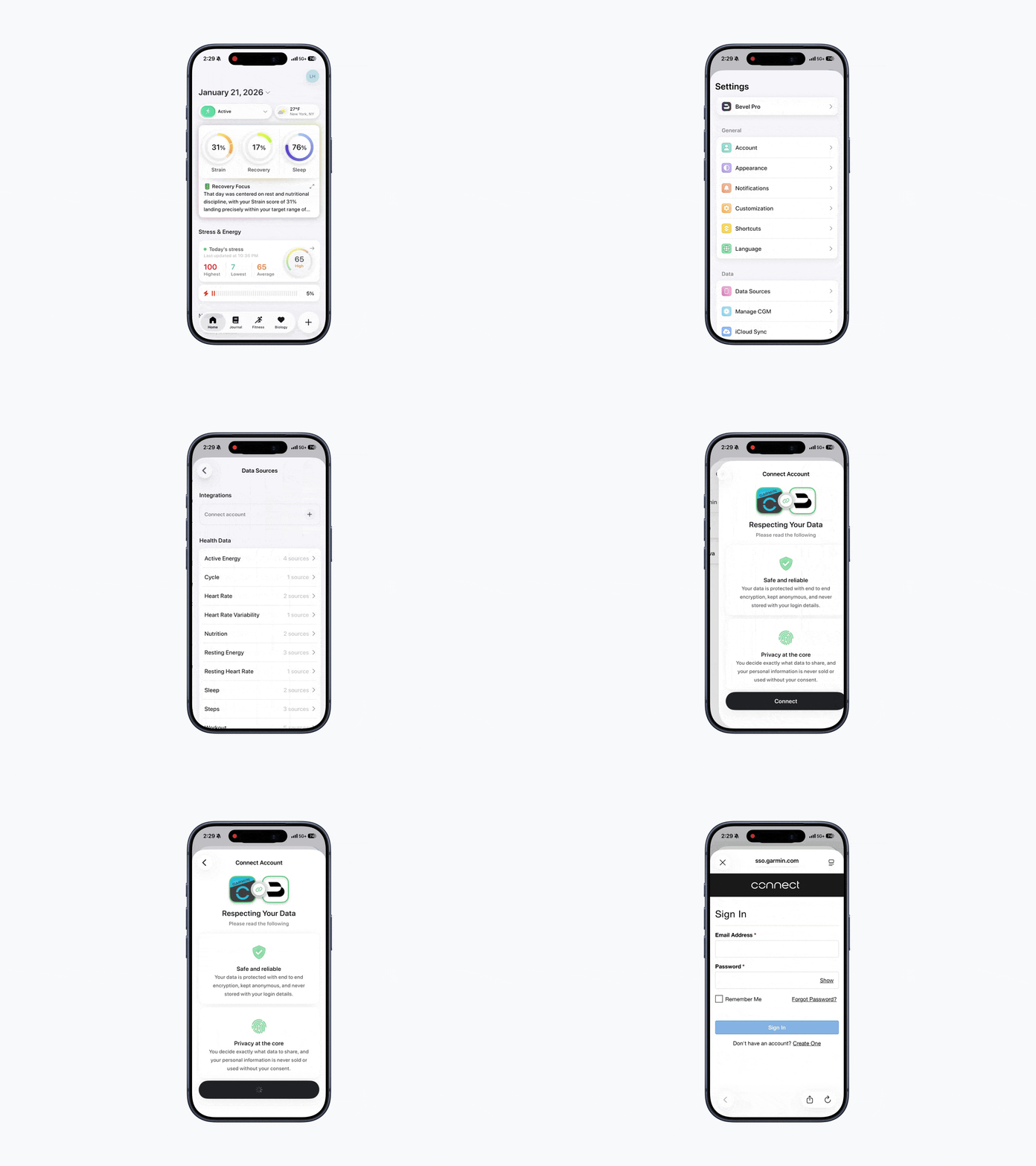
Steps to Connect a Device
Open Tryon AI.
Tap your initials or profile picture in the top-right corner.
Tap Data Sources
Tap the + button next to Connect Account.
Select your device.
Follow the on-screen pairing prompts for that device.
Once connected, your data will automatically sync to Tryon AI.
Supported Devices & Integration Limitations
Below is a list of supported devices and known limitations with each integration. These limitations affect which data can be synced into Tryon AI and may vary by platform and data type.
Device | Integration | Limitations |
Apple Watch | Full integration with Apple Health, providing seamless access to Sleep, Fitness and daily metrics. |
|
Garmin Watch & other devices | Direct integration with Garmin Connect⢠to read all Sleep, Fitness and daily metrics. |
|
Oura Ring | Direct integration with Oura to read all Sleep, Fitness and daily metrics. |
|
Google Health | Direct integration with Google Health to read all Sleep, Fitness, and daily metrics. If you use Fitbit, your Fitbit data can also sync to Tryon AI through Google Health. |
|
Strava | One-way integration with Strava to push Tryon AI and third-party workouts manually or automatically to Strava. |
|
Amazfit Helio Strap (Zepp App) | Integration through Apple Health to read all Sleep, Fitness and daily metrics. |
|