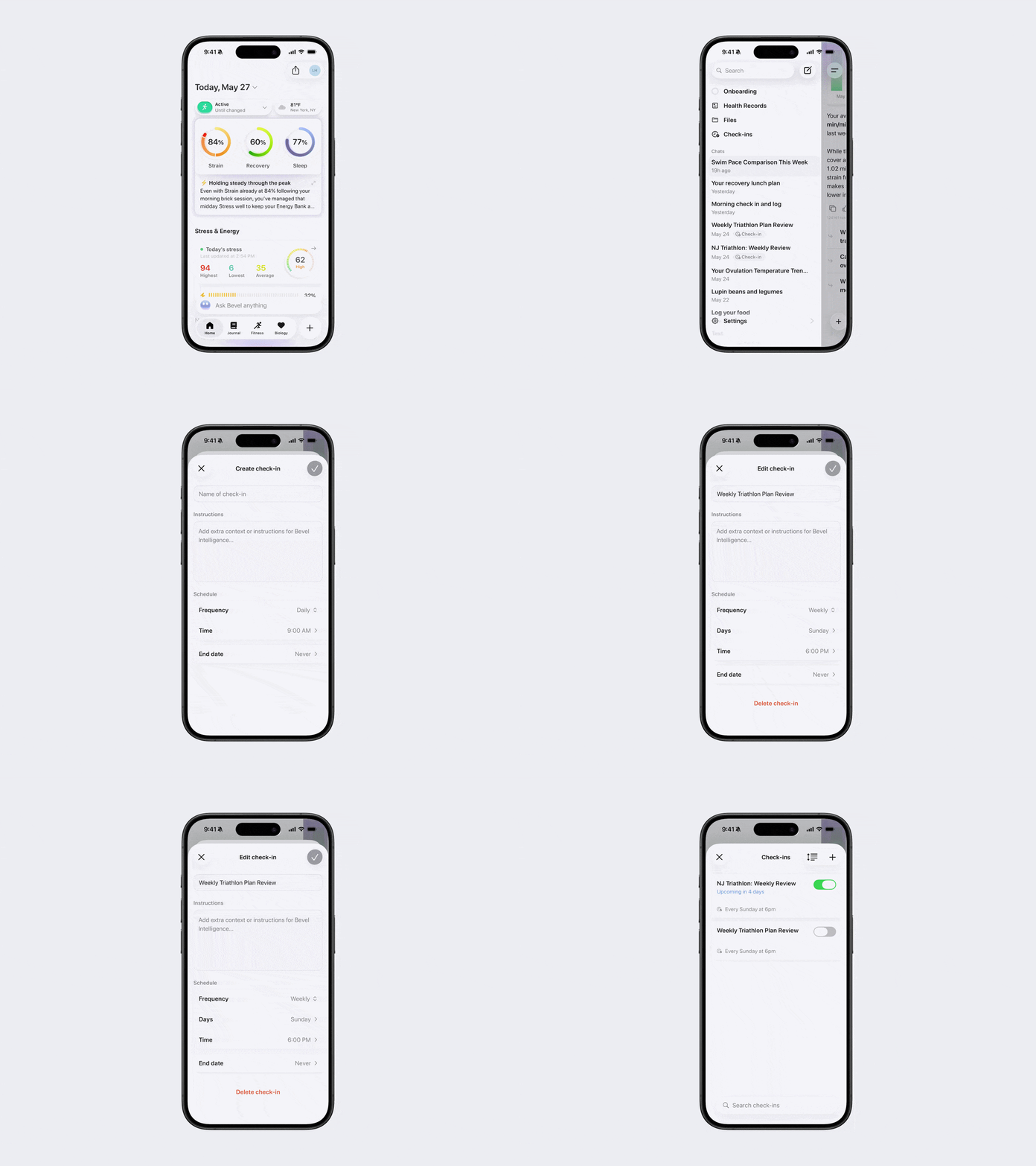
How to Create and Manage Check-ins
You can easily create and manage check-ins in Tryon AI Intelligence.
Option 1: Create a Check-in with Tryon AI Intelligence
Open Tryon AI Intelligence.
Ask Tryon AI Intelligence exactly what you want to track, including:
the type of information you want included,
how often you want the check-in,
and the time you want to receive it.
Example: âSend me a daily recovery summary every morning at 8am.â
Option 2: Create and Manage Check-ins Manually
Open Tryon AI Intelligence.
Tap the menu icon in the top-left corner.
Tap Check-ins.
Create a Check-in
Tap the + button in the top-right corner.
Enter:
Title
Instructions: additional context or instructions for Tryon AI Intelligence
Schedule, including:
Frequency (once, hourly, daily, weekly, monthly)
Days
Time
End Date
Tap Save to create the check-in.
Edit a Check-in
Open the Check-ins page.
Tap the check-in you want to edit.
Update any details youâd like to change.
Tap the checkmark in the top-right corner to save your changes.
Pause or Delete a Check-in
To temporarily turn off a check-in, toggle it off.
To permanently delete a check-in:
Open the check-in.
Tap Delete Check-in.